ip
Froggy User Guide
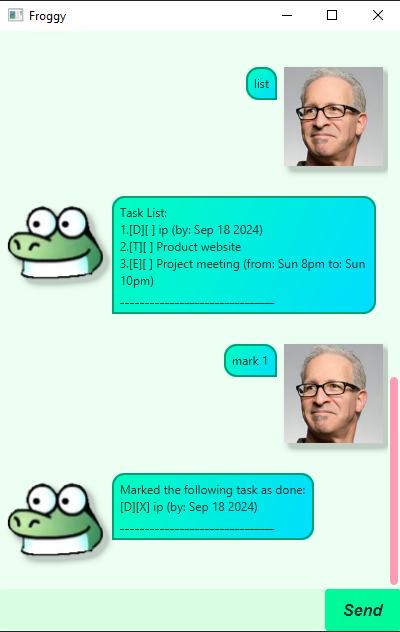
Froggy can keep track of and save your various tasks.
Adding todo task todo
Adds a todo task with a description
Format: todo [description]
Example: todo Project
Outcome:
Added this task:
[T][] Project
_______________________________
Adding deadlines deadline
Adds a deadline task with a description and a deadline.
Indicate deadline using ‘/by’
You can also input date as deadline in the format of YYYY/MM/DD.
Format: deadline [description] /by [deadline]
Example: deadline project /by 2024/09/20
Outcome:
Added this task:
[D][] Project (by: Sep 20 2024)
_______________________________
Adding events event
Adds an event task with a description and a start and end time.
Indicate start and end times with ‘/from’ and ‘/to’ respectively.
Date input not supported.
Format: event [description] /from [starting time] /to [ending time]
Example: event Project Meeting /from Sun 8pm /to Sun 10pm
Outcome:
Added this task:
[E][] Project Meeting (from: Sun 8pm to: Sun 10pm)
_______________________________
Listing all tasks list
Lists all tasks.
Format: list
Example Outcome:
Task List:
[T][] Project
[D][] Project (by: Sep 20 2024)
[E][] Project Meeting (from: Sun 8pm to: Sun 10pm)
_______________________________
Marking tasks as done mark
Marks a task as done based on index (starting with 1).
Format: mark [index]
Example: mark 2
Outcome:
Marked the following task as done:
[D][X] Project (by: Sep 20 2024)
_______________________________
Unmarking tasks as undone unmark
Marks a task as undone based on index (starting with 1).
Format: unmark [index]
Example: unmark 2
Outcome:
Marked the following task as undone:
[D][] Project (by: Sep 20 2024)
_______________________________
Deleting a task delete
Deletes a task based on index (starting with 1).
Format: delete [index]
Example: delete 2
Outcome:
Deleted the following task:
[D][] Project (by: Sep 20 2024)
_______________________________
Searching a task by description find
Finds tasks with matching description.
Format: find [description]
Example: find meeting
Outcome:
Task(s) found:
[E][] Project Meeting (from: Sun 8pm to: Sun 10pm)
_______________________________
Close the program bye
Instantly closes the program.
Format: bye
Saving the data
Data is automatically saved every time you change the task list.
Data is stored in taskList.txt in Data folder.
This folder should be created when you launch the program
in the folder containing the program. An empty taskList.txt is created
if the file is not found.
The data is loaded from taskList.txt every time the program is launched.
If taskList.txt is edited or corrupted, the program will not open and will give an error.
To fix the error, either edit taskList.txt to match the format it is stored as,
or delete the file altogether and the program will create an empty file when it is next launched.
This is done to ensure that the user does not lose data on their old tasks.
Duplicate tasks
Tasks with the same type and description(s) will not be added to task list.
If you want to create two similar tasks, please make sure the description is not the same.
Command summary
| Command | format |
|---|---|
| todo | todo [description] |
| deadline | deadline [description] /by [deadline] |
| event | event [description] /from [starting time] /to [ending time] |
| list | list |
| mark | mark [index] |
| unmark | unmark [index] |
| delete | delete [index] |
| find | find [description] |
| bye | bye |